Raspberry Pi Pico Docker SDK
Lightweight Raspberry Pi Pico C++ SDK container.
Pull container from Docker Hub and run
The latest version of the image is stored on Docker Hub and can be used for container runs. Commands below show how to run a container, using an image from Docker Hub
docker run -d -it --name pico-sdk --mount type=bind,source=${PWD},target=/home/dev lukstep/raspberry-pi-pico-sdk:latest

docker exec -it pico-sdk /bin/sh
The directory from which the docker run command was called will be mounted to /home/dev in the container.
So after attaching to the SDK container you can build your project following the steps:
cd /home/dev

mkdir build

cd build

cmake .. && make -j4
Build image and run container:
To build your own SDK image, You need to clone this repository and run the following commands:
cd raspberry-pi-pico-docker-sdk

docker build . --tag pico-sdk

docker run -d -it --name pico-sdk --mount type=bind,source=${PWD},target=/home/dev pico-sdk

docker exec -it pico-sdk /bin/sh
Attach VSCode to running container
You can use the SDK container with Visual Studio Code, follow the instruction below:
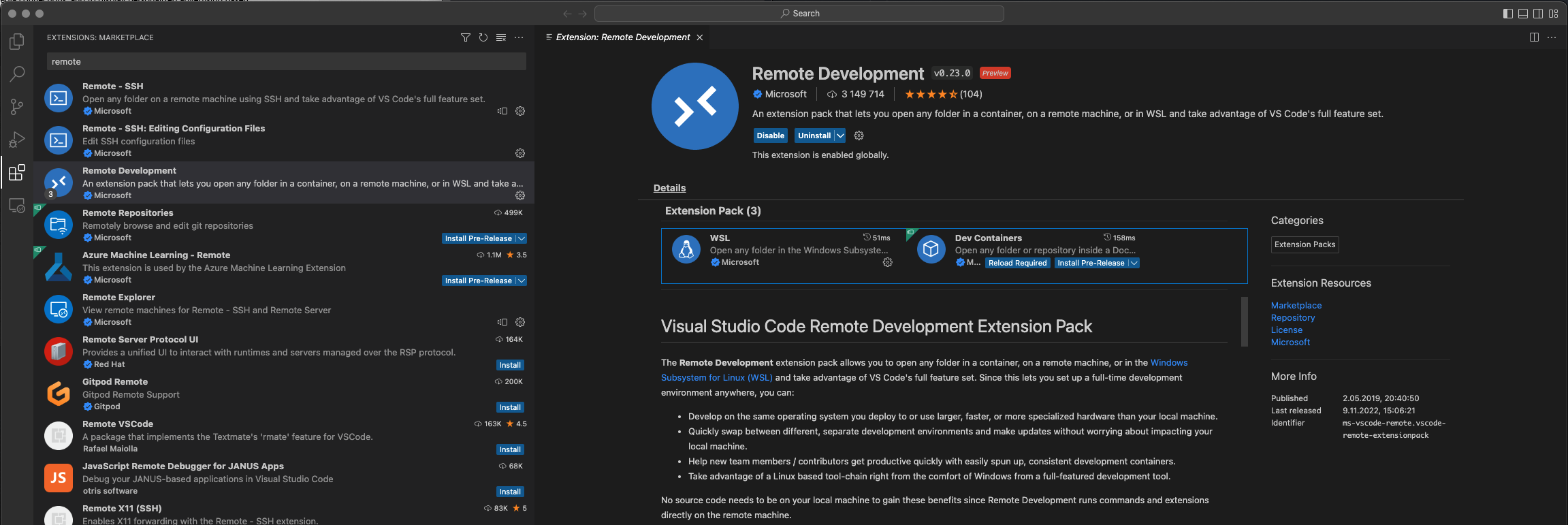
- Install Visual Studio Code and next Remote Development extensions.
-
Open the terminal and go to the projects you want to open in VSCode.
-
Pool SDK image from Docker HUB and run SDK container via the following command. The container must be running while you attach to it via VSCode.
docker run -d -it --name pico-sdk --mount type=bind,source=${PWD},target=/home/dev lukstep/raspberry-pi-pico-sdk:latest

docker exec -it pico-sdk /bin/sh
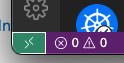
- Click the green button in the lower left corner of VSCode and select options: Attach to Running Container...
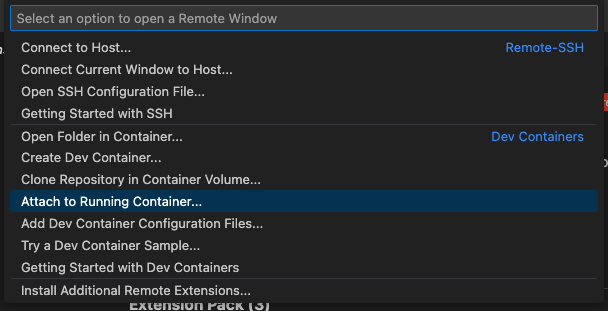
- Select the SDK container.

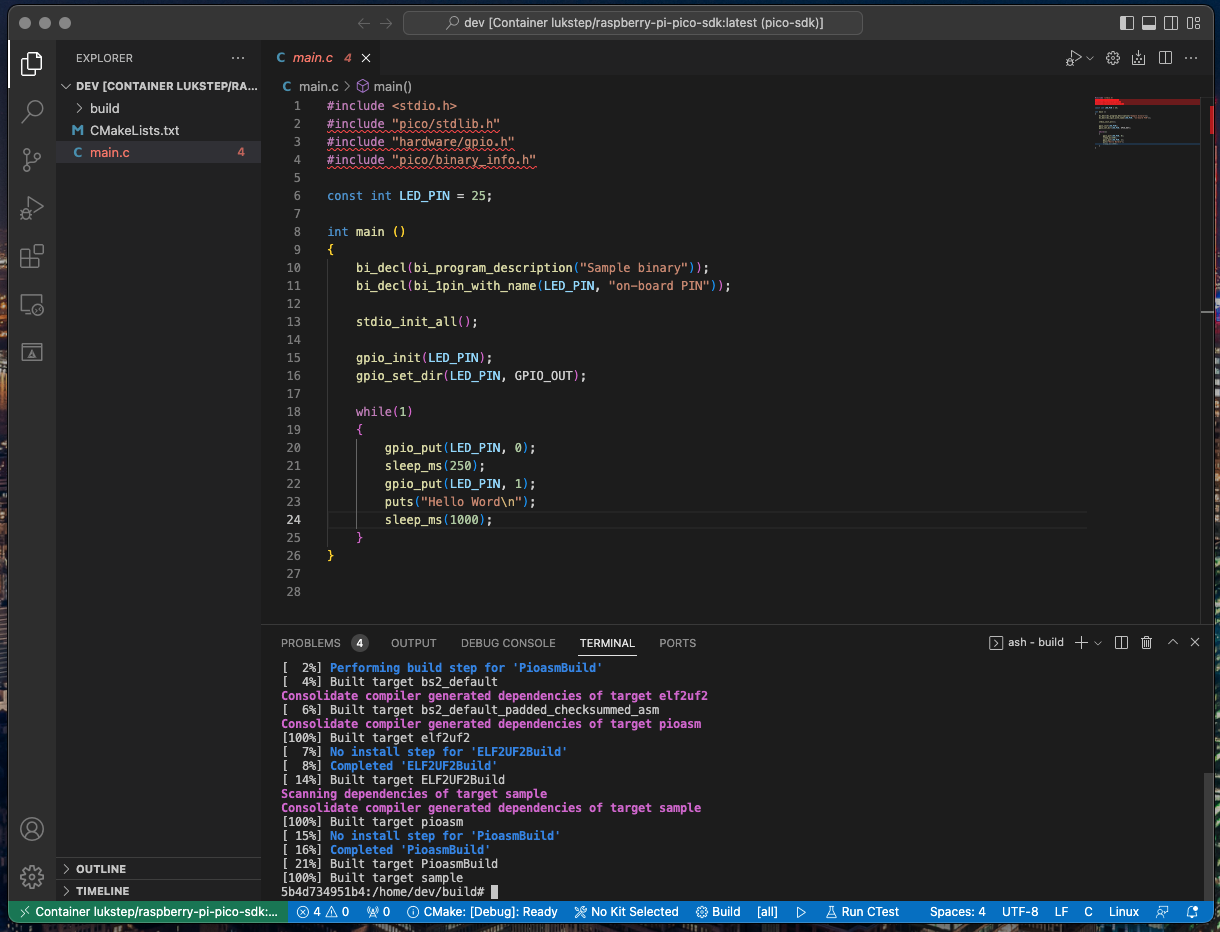
- Then a new VSCode window will open. At the bottom window, you can see that it is attached to the SDK container.

- Now, there is needed to open project files. Your project is mounted to
/home/devin the container. Go to EXPLORE tab in VSCode and click Open Folder. In opened window write/home/devand click the OK button.
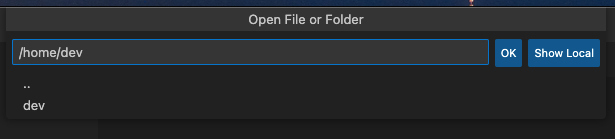
- Now You can explore, develop and build your Raspberry Pi Pico project via Visual Studio Code!